Overview
User Management is client data management system (End User) which allows Buzzebees’s client to search for user data (End User) and manage data under their consent including analyze customer’s behavior upon using app and collect data to plan and strategize for customer’s need. Currently, all data will be shown as per below:
- Total amount of customers of the application
- Customer profile
- Customer additional profile from the application
- Customer purchase history
- Customer redeemed history
- Customer point history
- Customer privilege level
- Customer timeline
- Customer data privacy
- Customer wallet
The system enables Buzzebees’ client to filter data and categorize their users for future marketing purpose such as, filtering only male or female users or all genders including creating marketing campaign for specific area or provinces.
Login methods are separated into 2 types
- By Email (Ex.@proton.me)
- Select one of the login methods separated from @Email as per below:
- Office 365
- Microsoft(Hotmail / Outlook)
- Google
- Facebook

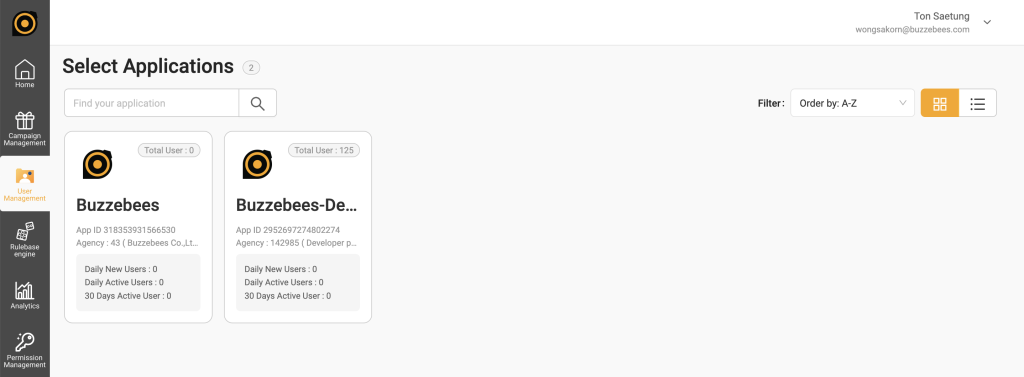
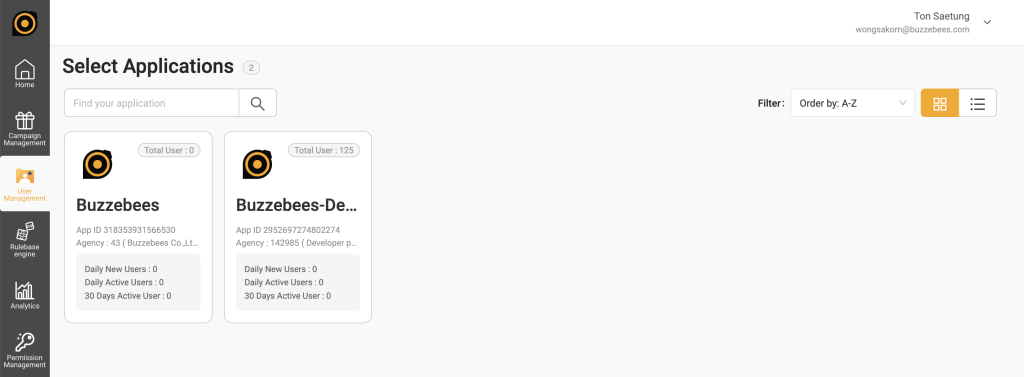
Select application
This page is for managing user data by selecting application and it also displays the total amount of users using the application (End User)
User List
This page is for managing user data by selecting application and it also displays the total amount of users using the application (End User). This page displays data (Day-1). To search for Realtime users, such as those who have just registered today, click on the Realtime data button to search for users.
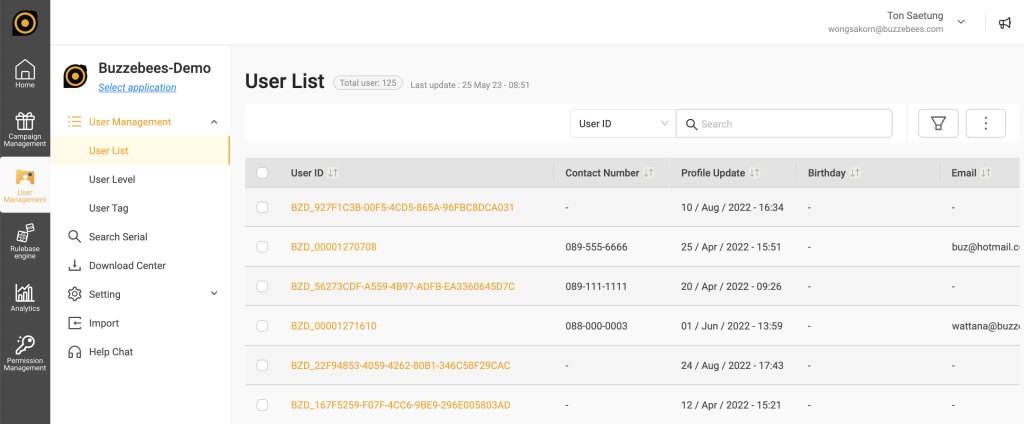
Search
Client can search for user data (End User) by:
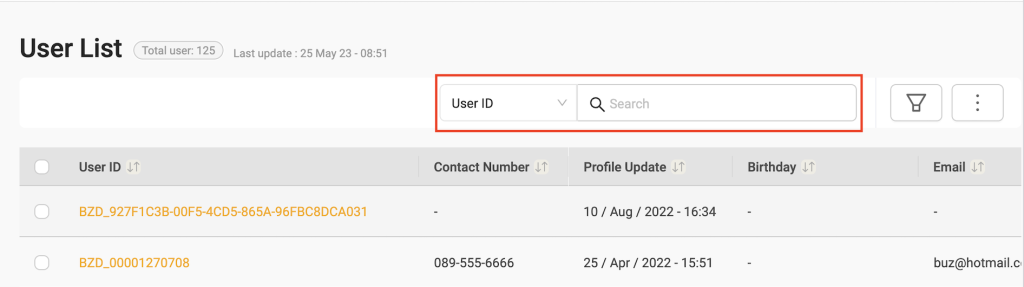
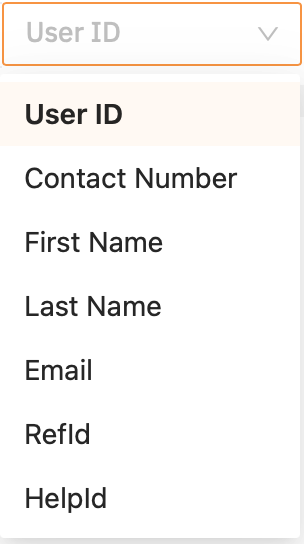
- All : Search by any fields including UserID, Contact Number First Name, LastName, Email
- UserID : Search by User ID
- Contact Number : Search by phone number
- Firstname : Search by first name
- Lastname : Search by last name
- Email : Search by email
- RefId : Search by Reference ID
- HelpId : Search by Help ID
Filtering user list
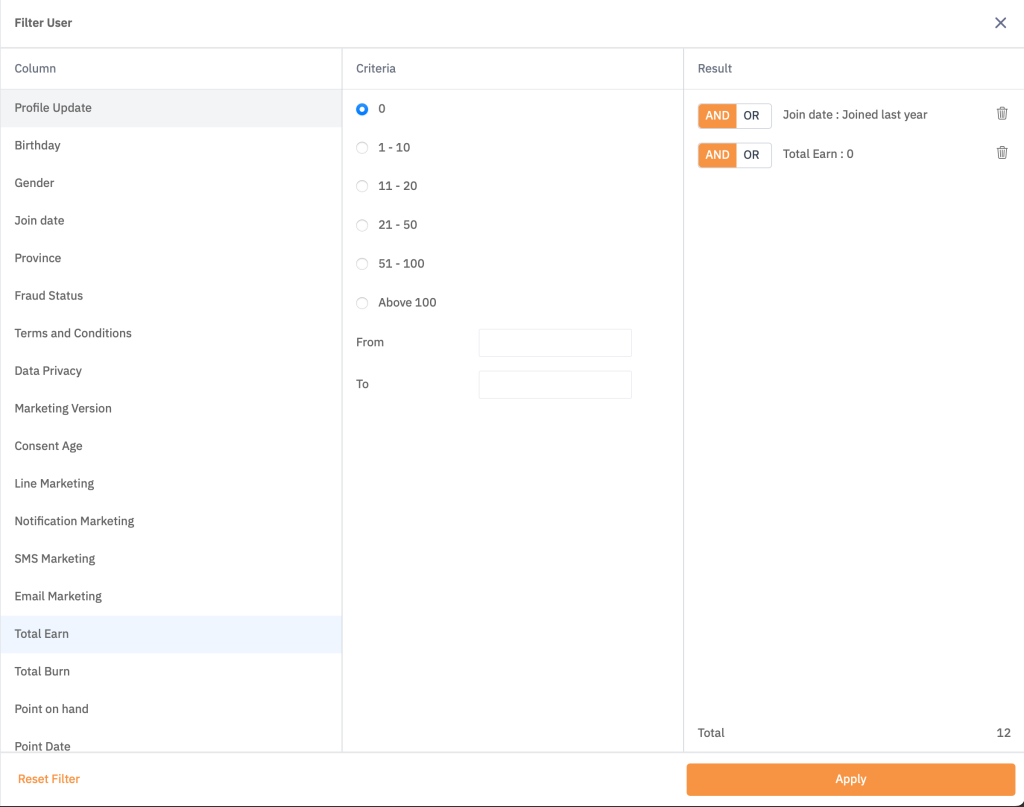
Filter end user data in order to categorize user list which will be separated into 3 parts:
- The Column part will show which content client needs to filter
- Criteria will allow client to specify what they need to filter (Ex. End user who registered last year and total earn point = 0)
- Result: result of end user data after filtering.
There are 2 types of filtering that can be selected: clear entirely or partially by icon bin.
Creating new list
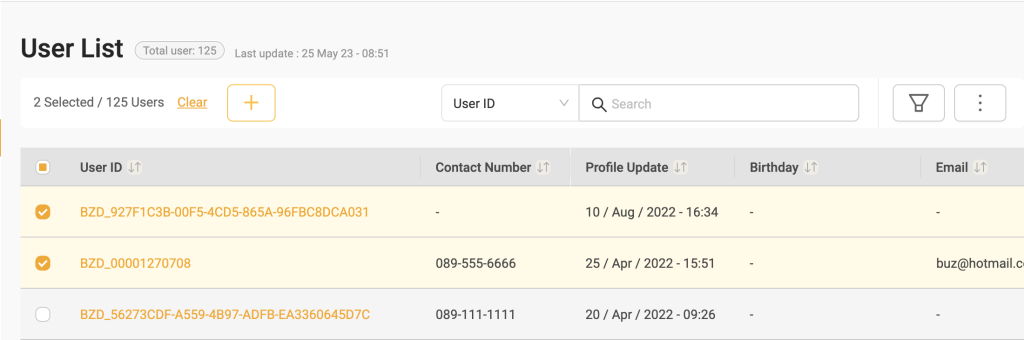
To create user list, client must filter data first to manage their chosen data, for example, if client needs to create user list of end user living in Bangkok, they have to filter Bangkok and click to create user list.
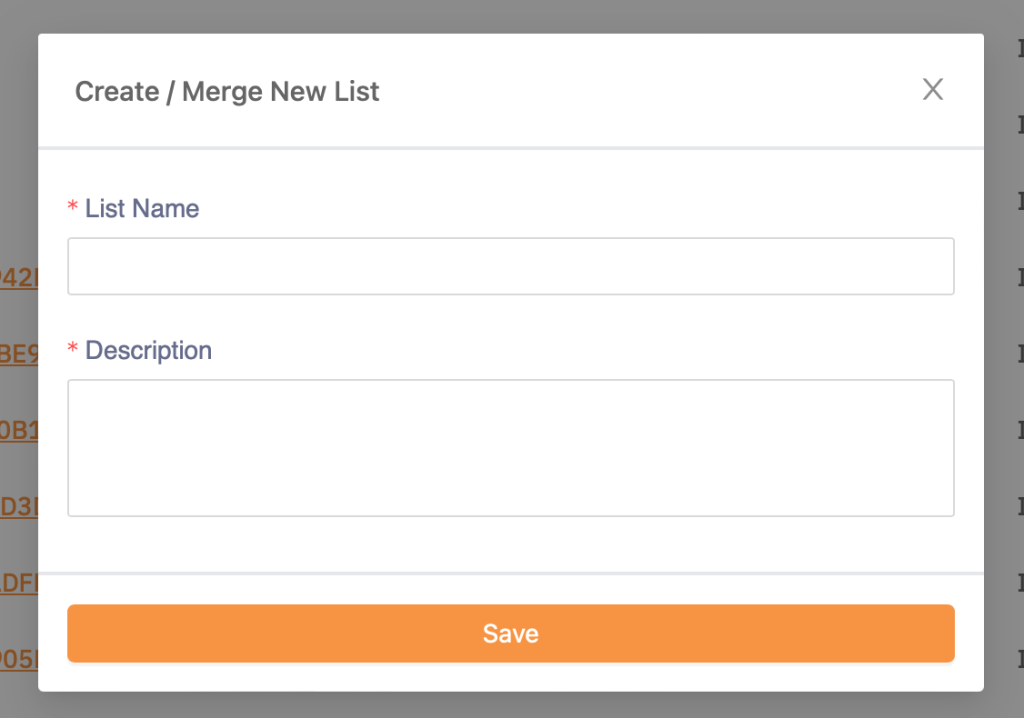
Client can fill in name and description on pop-up window for creating user list.
Load Saved list
To create user list, client must filter data first in order to manage their chosen data, for example, if client needs to create user list of end user living in Bangkok, they have to filter Bangkok and click to create user list.

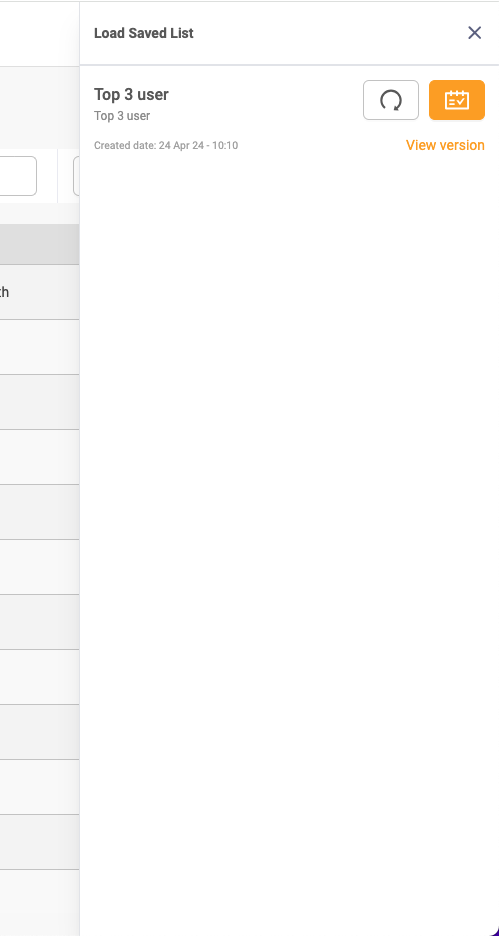
Show created user list, the pop-up window will be located on your right side.
Display Field
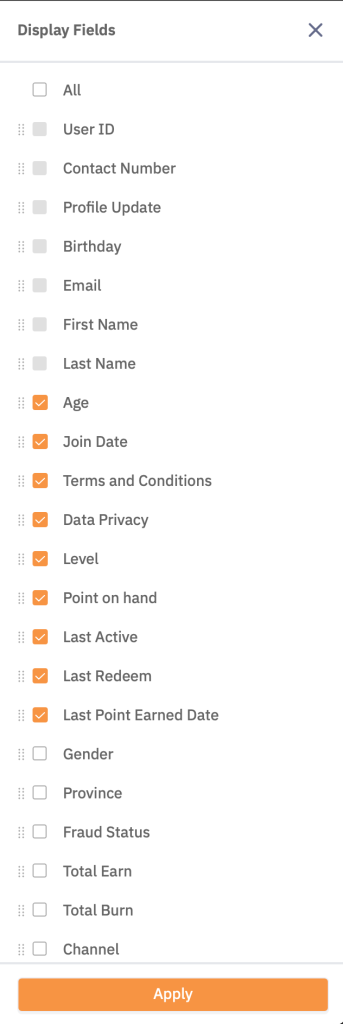
Show end user’s data which client can select any topics to be displayed and rearrange column for priority. Client can select column as per below image:

Exporting Saved list
Click to export filtered user list as CSV file.

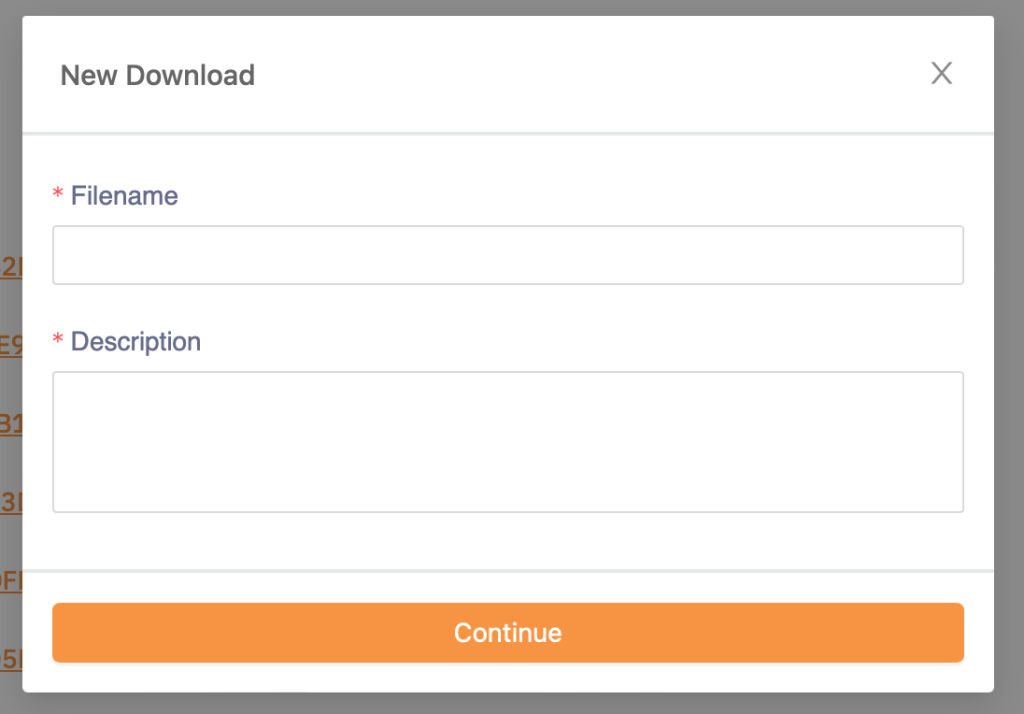
Client can create file name and fill out description in this pop-up window.
User Profile
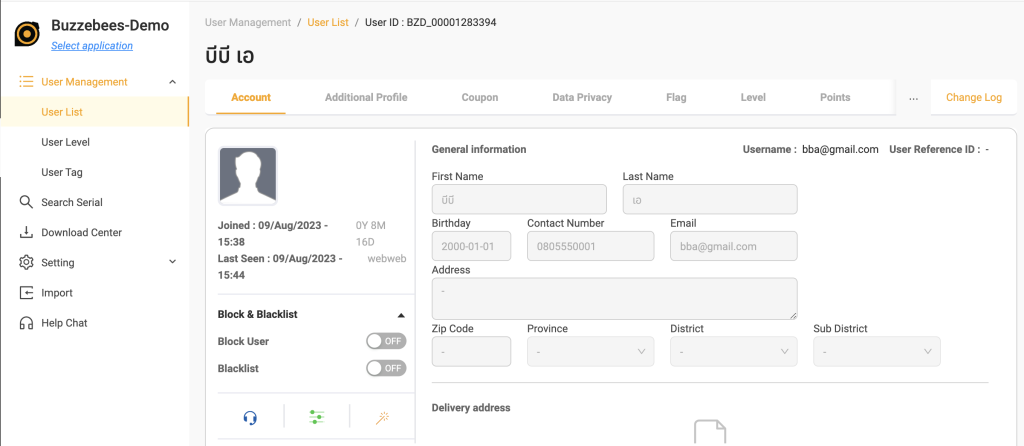
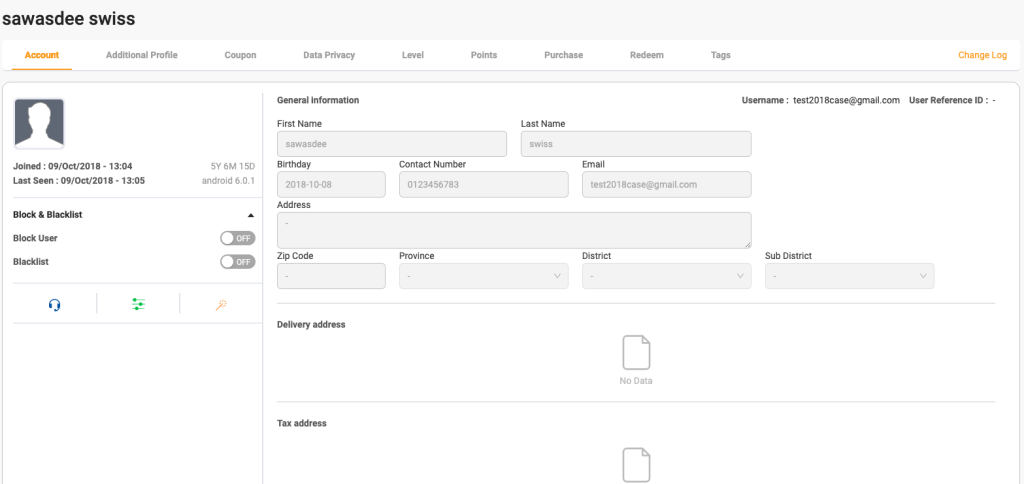
Profile
- End user profile picture
- End user Joined date
- End user Last seen
- End user platform
- Block User and Blacklist User, to check if this user has been banned or blocked
- Adjust point user
- Reset password (only for specific applications)
- End user general Information
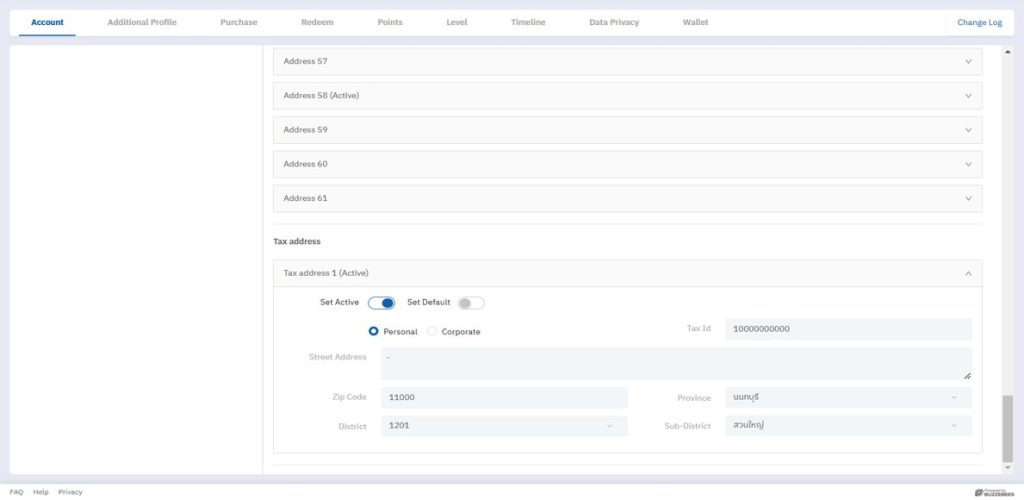
Delivery and Tax Addresses
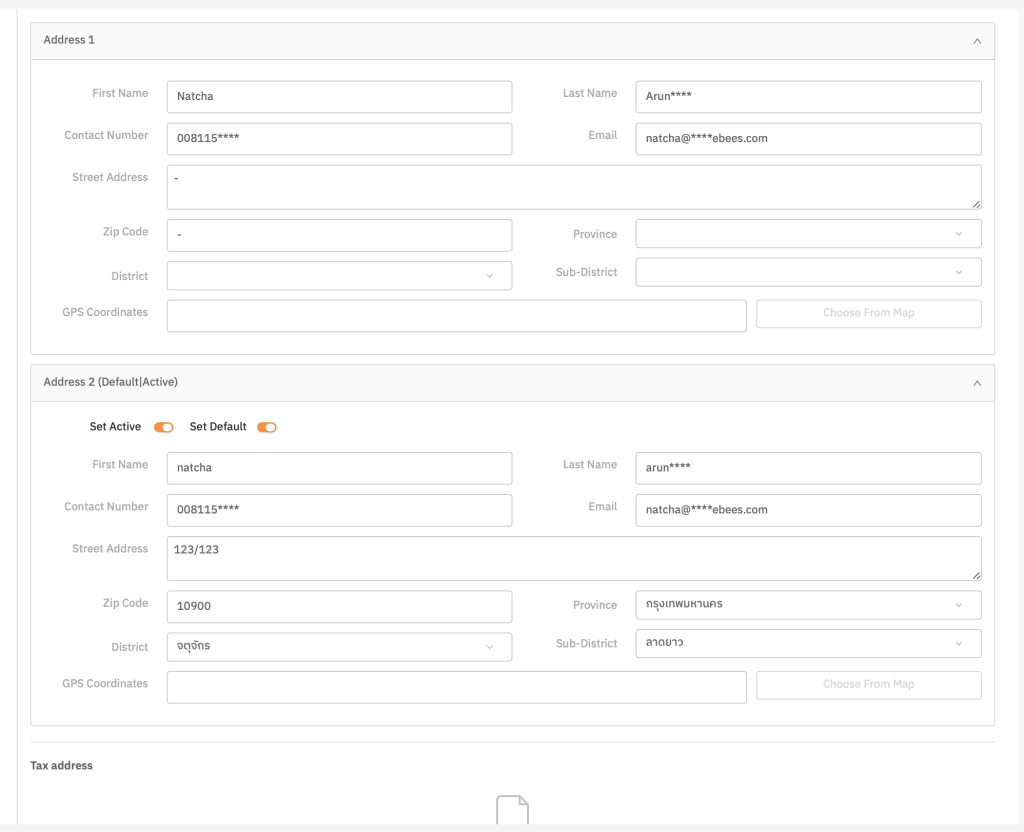
- End user delivery address
- Display delivery address (Shopping cart)
- Display all end user’s saved addresses
- Set as default address
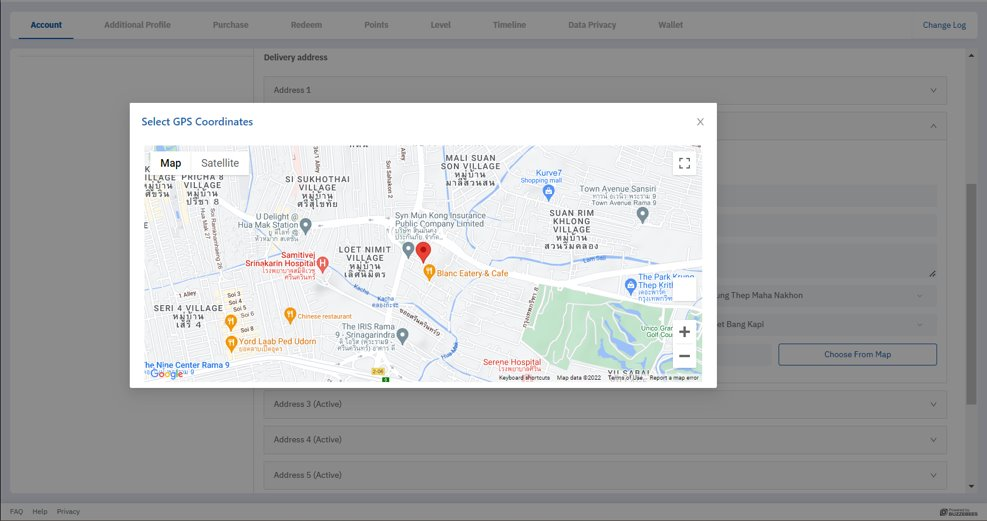
- Display latitude and longitude
- Open Google map
- Tax address = end user’s tax invoice
- Display all end user’s saved addresses
- Set as default address
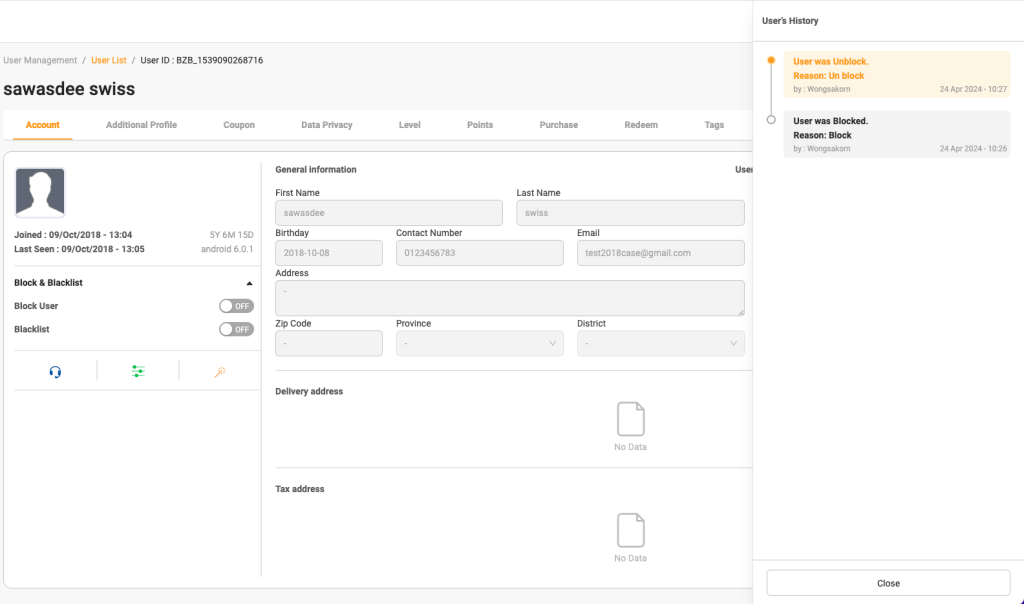
Change log
History log of account tab displays revised details such as backlist – unblacklist user, block-unblock user, unlink Line account (only for specific applications)
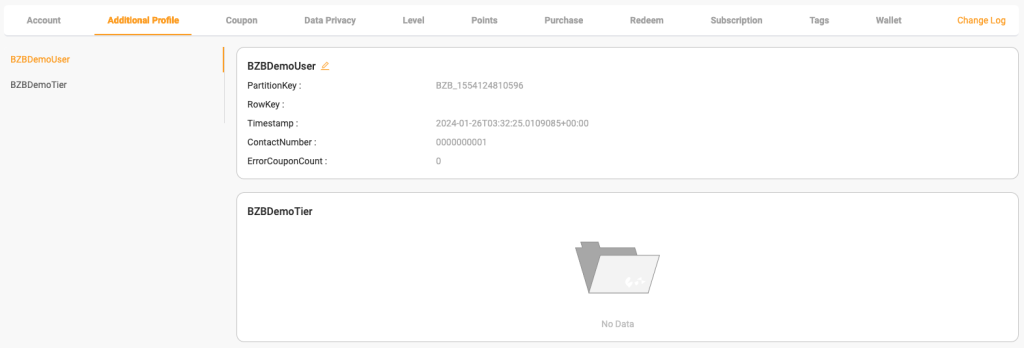
Additional Profile
This page shows specific data of application and will display as raw data.
- Table is table from Azure storage related to the application
- Information is detail from table related to the application
Coupon
This tab contains specific applications only and it will show details of coupon that end user has been redeemed such as serial under lid or package by scanning to get points.
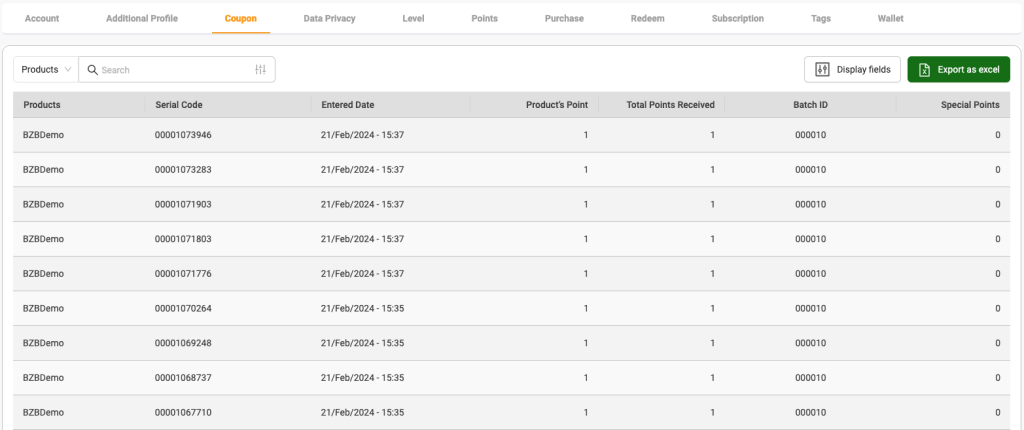
Searchable by
- Products
- Serial Code
Purchase
Display purchased history via shopping cart (type buy) of end user, by checking transaction (Payment) and transaction detail (Payment ID) and view which products they buy, price, or amount.

Searchable by
- Payment ID
- Channel
- Status
Purchase detail
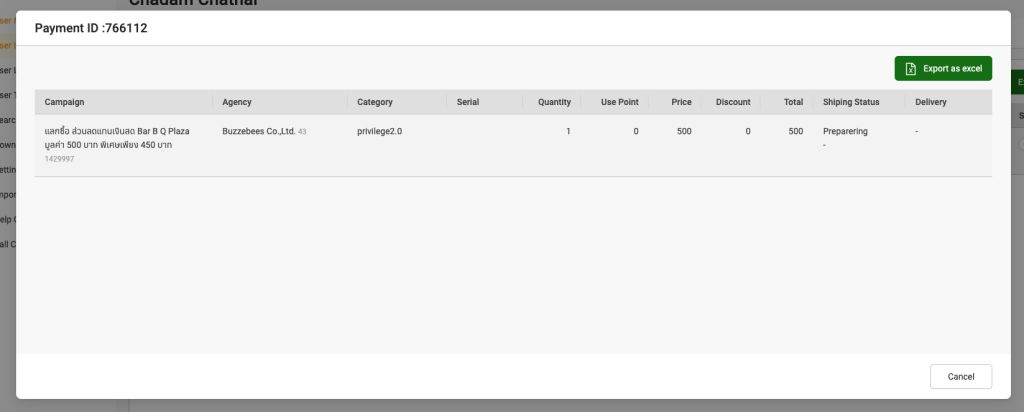
- Clicking Payment ID link will show pop-up window of details of products for each transaction (Payment), those products will be separated into 2 types:
- Food (as image)
- Good
- Food is different from good in that Food contains reference main campaign data to specify which products are on the same set, for example, cheese whopper with meat set including coke and French fries R as image below.
- Transaction detail (Payment ID) is exportable
Redeem history
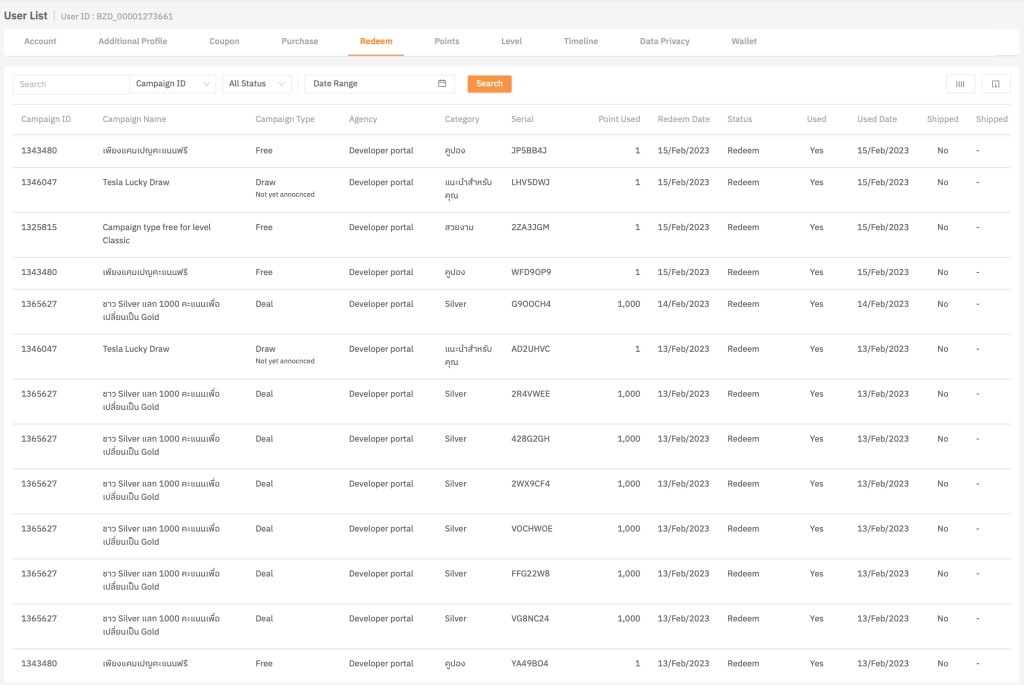
Display user’s redeemed history for all types of Buzzebees exclude Buy.
Searchable by
- Campaign ID
- Campaign Name
- Agency
- Category
- Serial
- Parcel
- Exportable
Points history
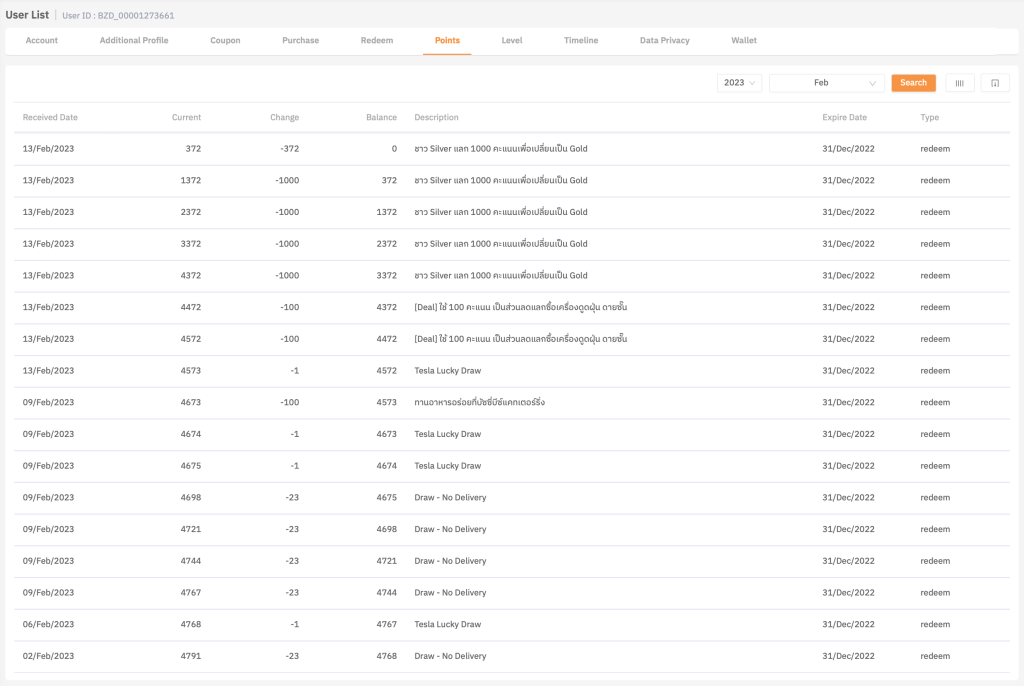
Display user history of Earn and Burn points which is searchable by month or year and export as file.
User level
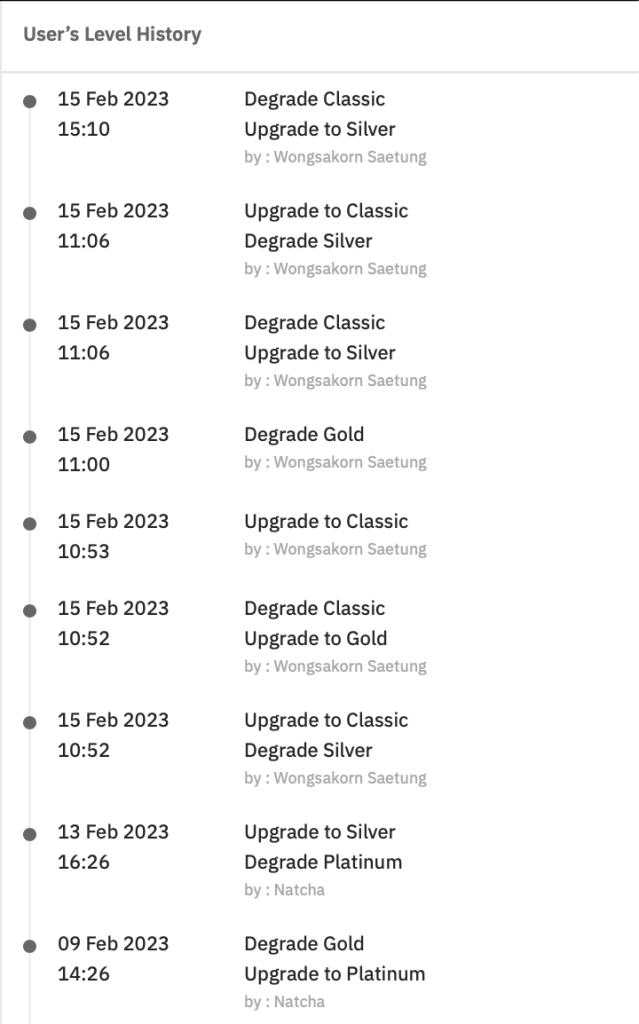
Display all levels of end user (list, date assigned, and date expired)
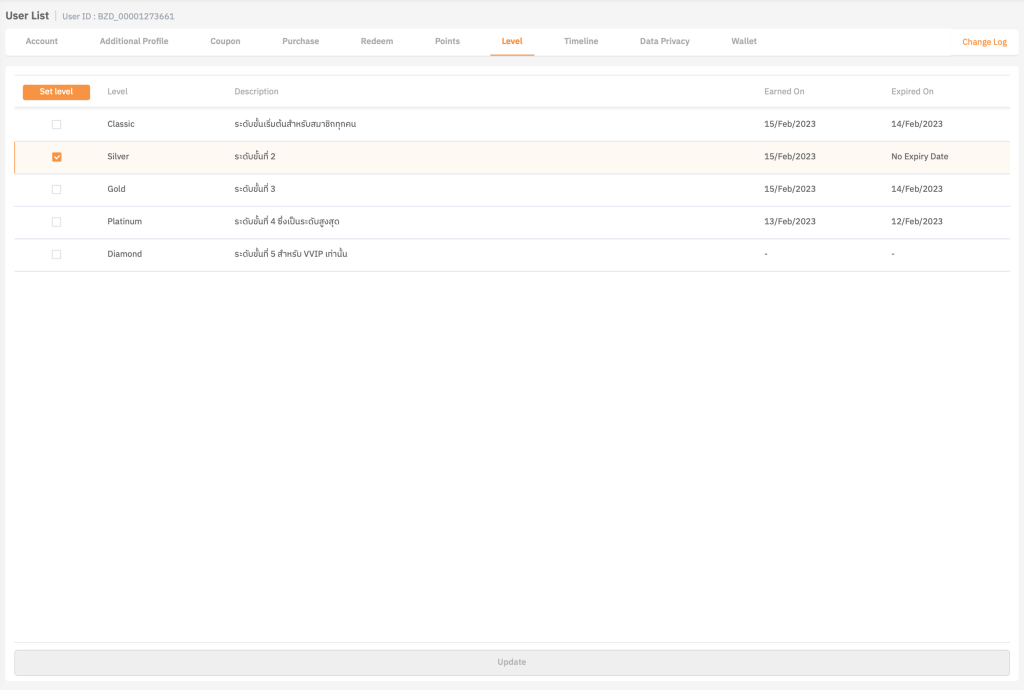
- Increase or decrease level of end user from AD of the role.
- Edit the expiry date of that level for end user
- Display items, revised date, and time – Check who’s responsible for decreasing user’s level
Data Privacy
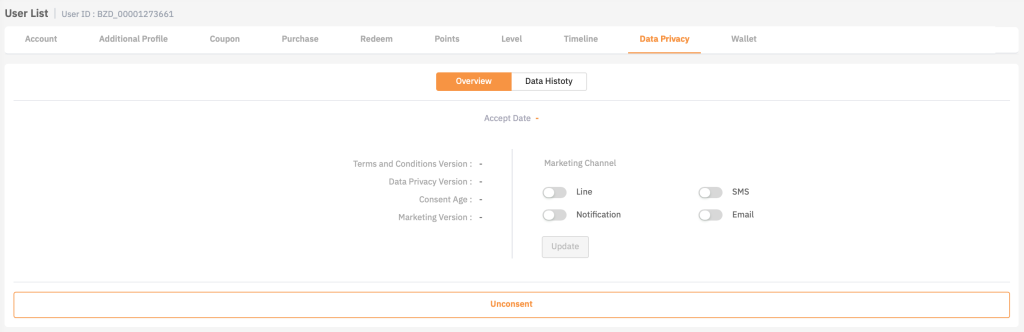
Display user permission list
- Term and condition
- Data privacy
- Consent age
- Permission of marketing options on platforms
- Line
- SMS
- Notification
- Email
Wallet
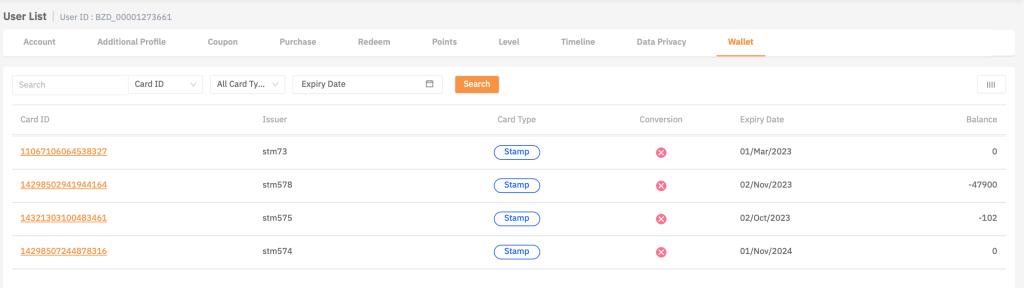
Only specific applications have this tab which display wallet detail of end user such as card number, card type, and expiry date which is exportable as file.
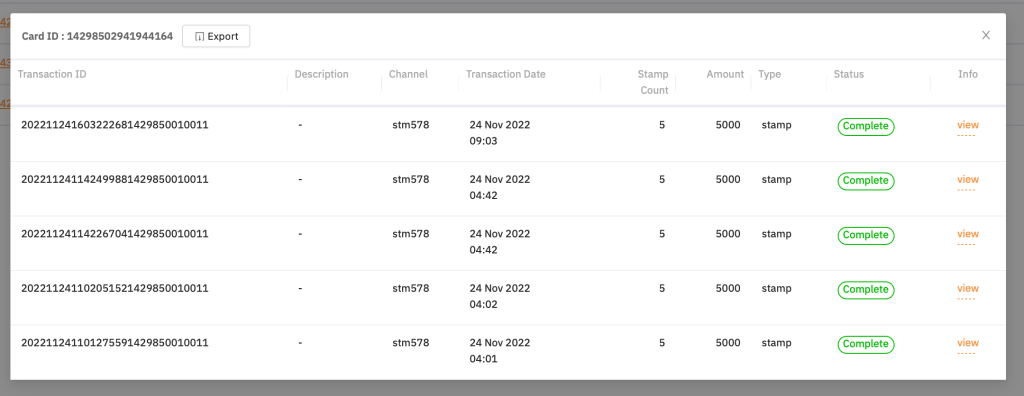
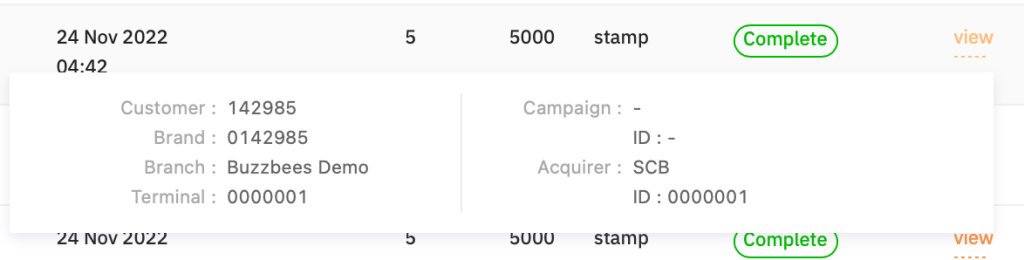
- Clicking card ID link displays pop-up window for transaction (Payment) and a card is separated into 2 types:
- Stamp (as image)
- Wallet
- Transaction detail (Card ID) is exportable
User level
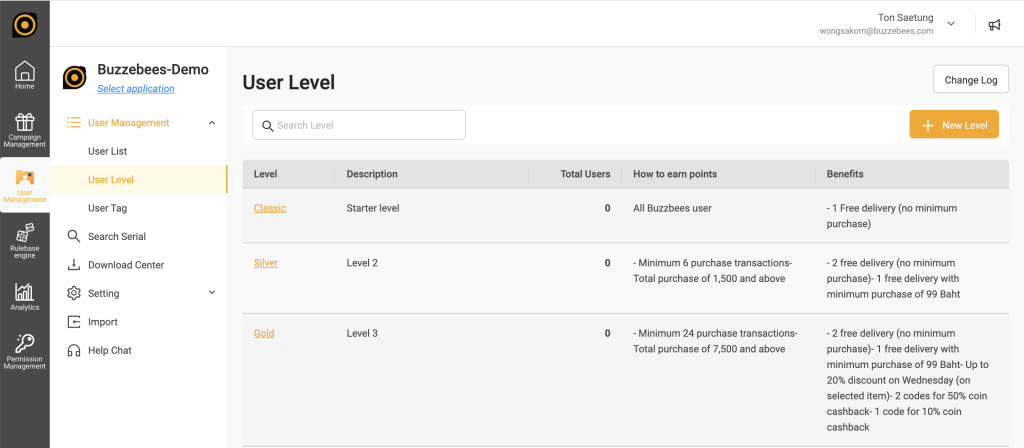
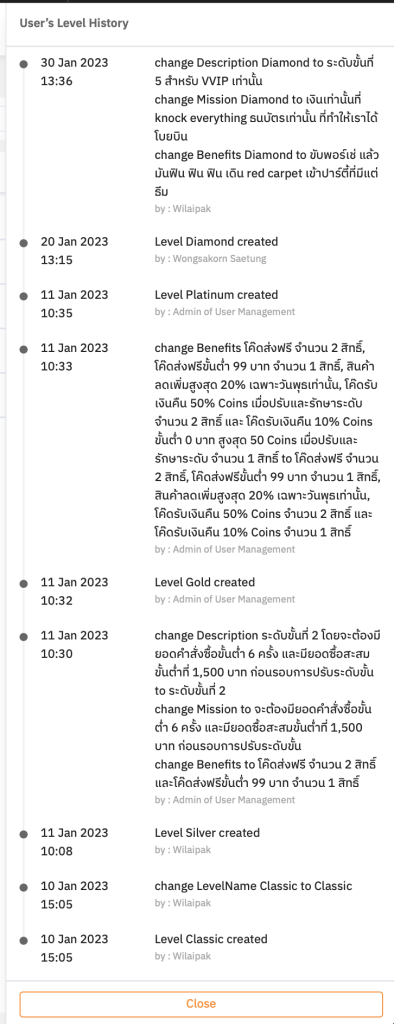
Menu user level: Level management page of each application
- Display all levels of the application
- Display the amount of end users by each level
- Add new level by saving level ID automatically
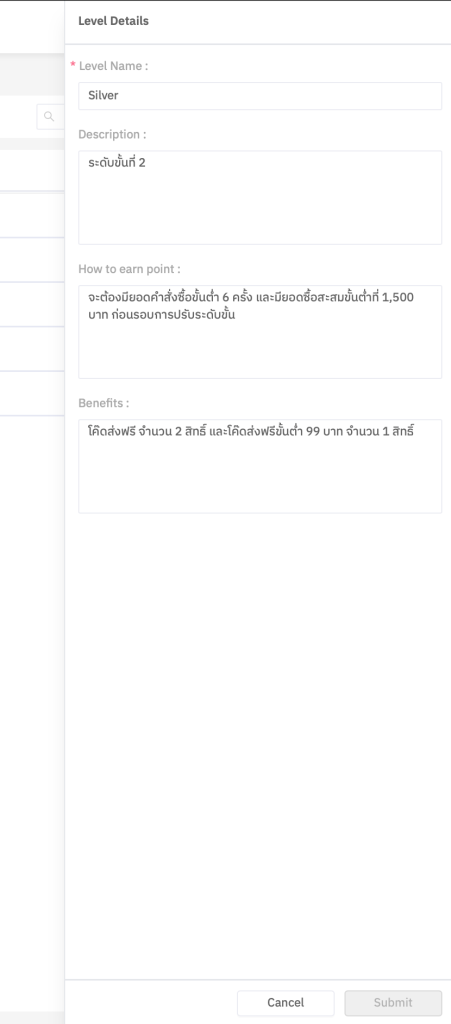
- Details are editable, but level ID is not editable
- Level Name
- Description
- How to earn point
- Benefits
User Tag
Menu user tag: Tag management page of each application
- Display all tags of the application
- Create new tag
- Support tag group
Search Serial
Menu search serial is used to search for the Coupon serials that users have used.

Download Center
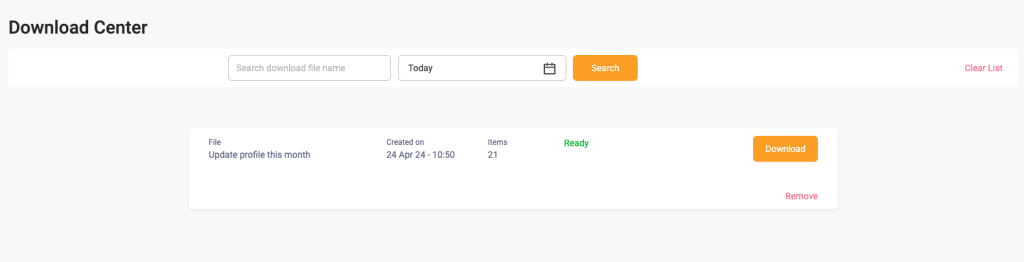
Display all download lists from user list menu, coupon tab, purchase, redemption, and wallet by exporting to .CSV to create edm
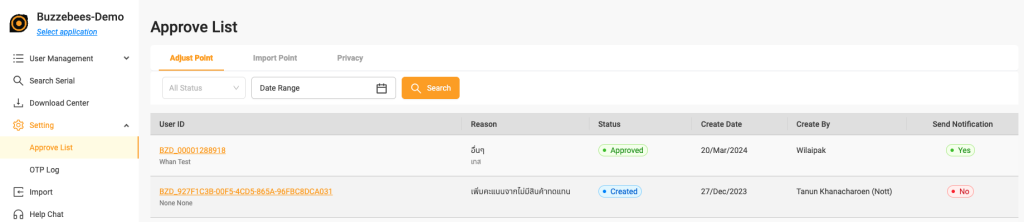
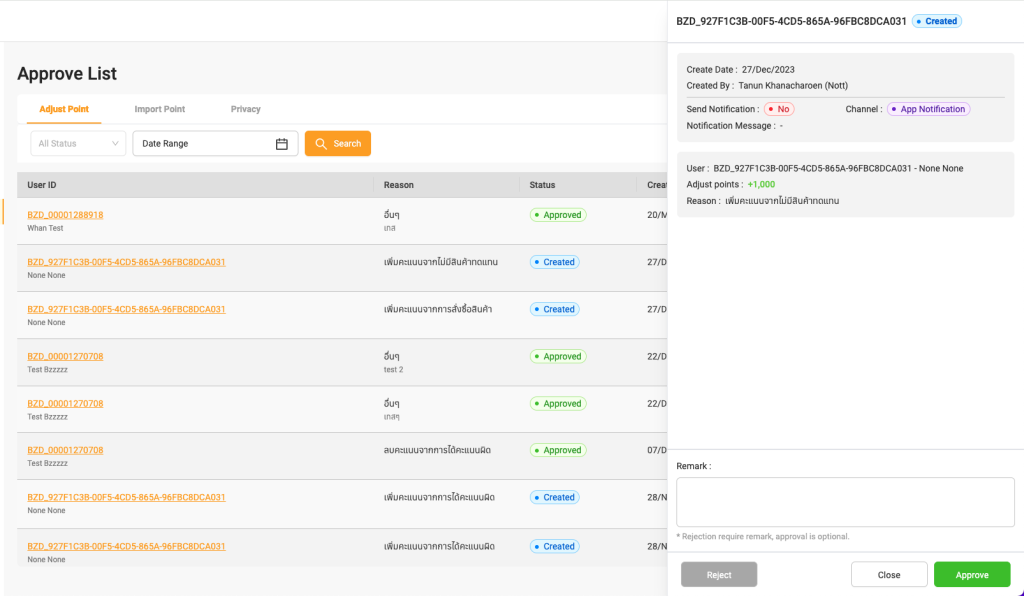
Approve List (For adjust point)
Approve increase point to user (1 person : 1 Transaction)
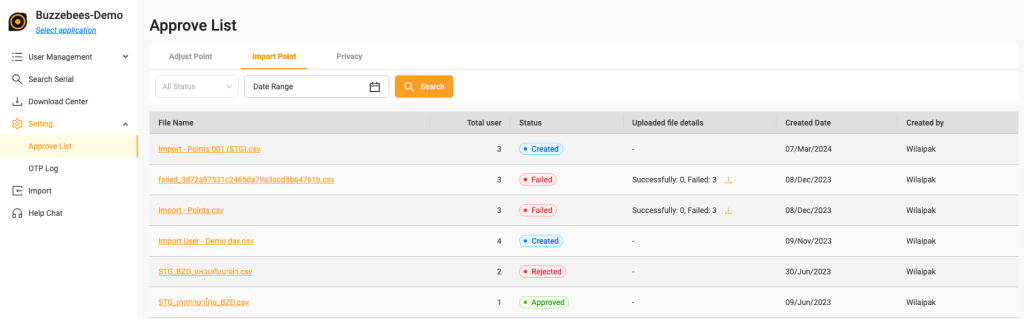
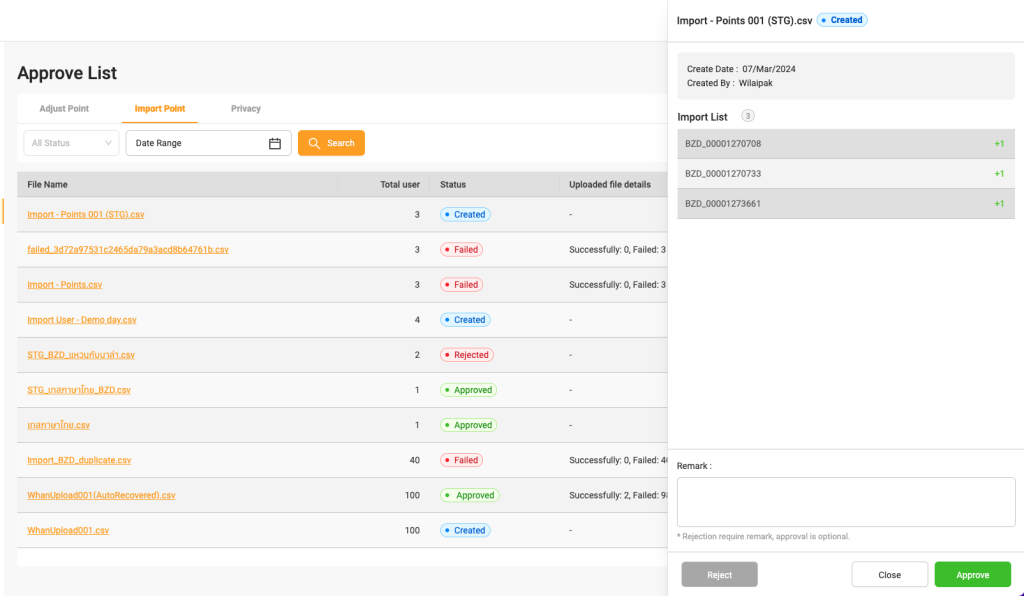
Approve List (For import point)
Approve increase points to multiple customers simultaneously and download the list of users who cannot have points added.
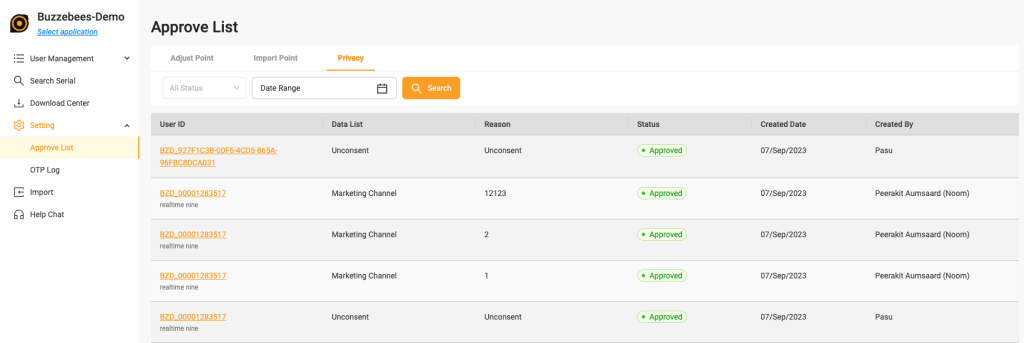
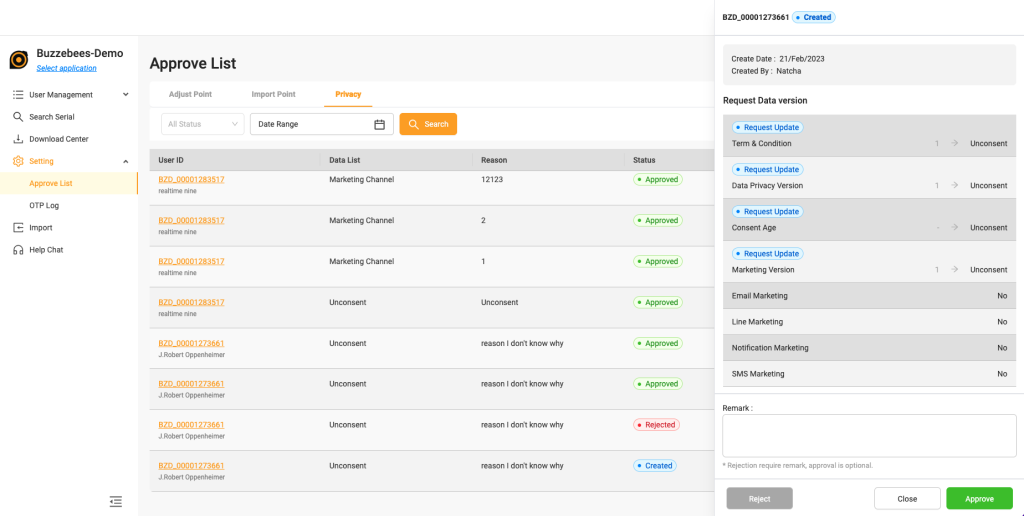
Approve List (For data privacy)
Approve or revoke user consent.
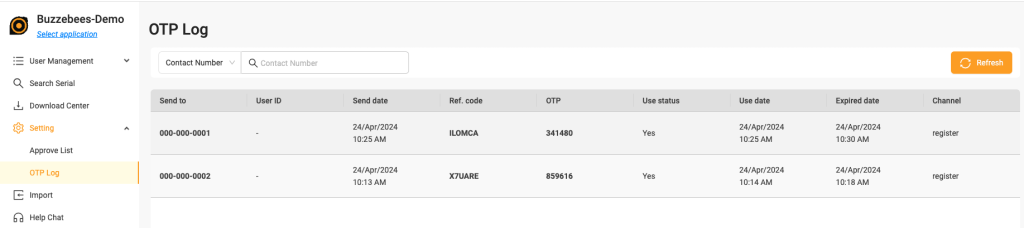
OTP Log
This is used to view the list of OTP.
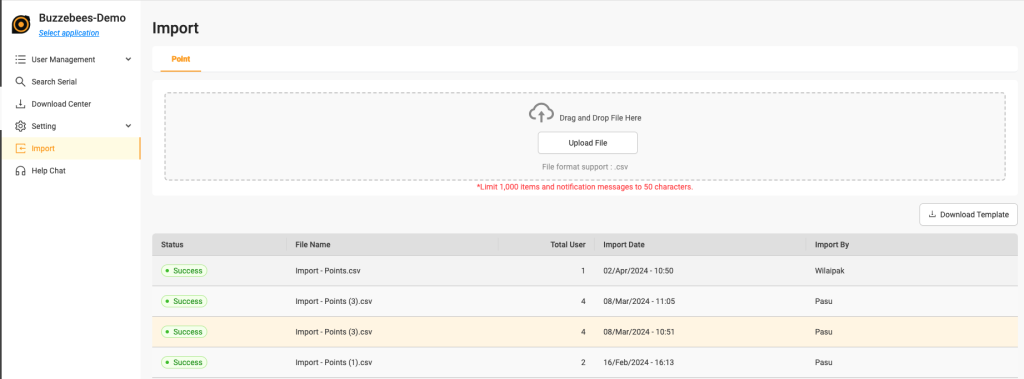
Import point
This is used to import points for users by uploading a file using a template which can be downloaded for use.
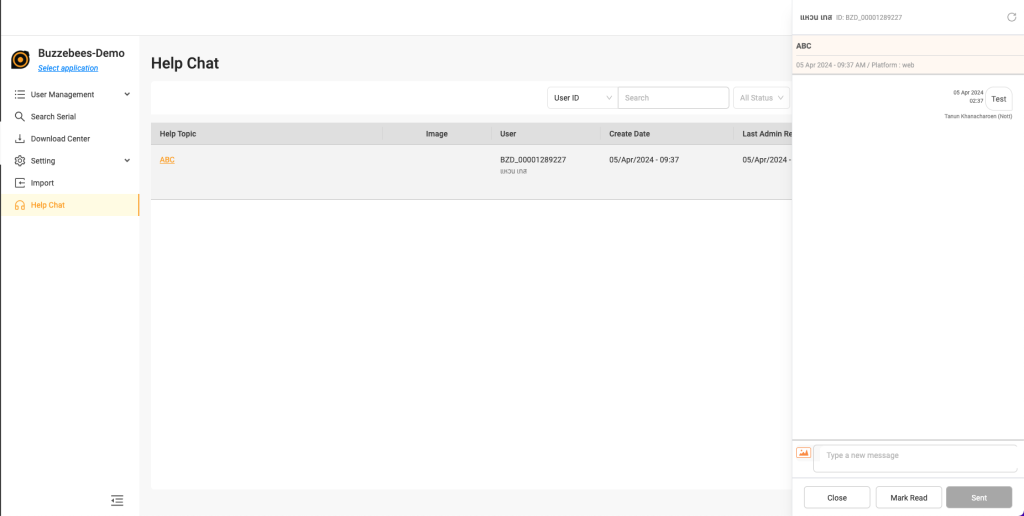
Help Chat
This is used to assist users in case they have reported an issue, by allowing a chat conversation with the user to resolve the problem.