Permission Management contents
Permission management
Permission Management is a system that manages and controls access rights for various features across all platforms related to Buzzebees. It ensures that users can only access functions according to their roles and responsibilities
1.Invitation Member
STEP: User Management > Invite Member
Only users with the role of System Admin or Owner Account are authorized to invite members into the system.
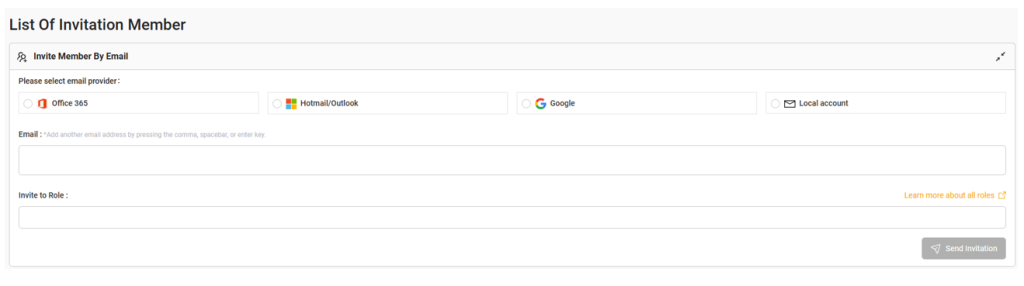
select the correct email domain and enter the email address in a valid format, such as:
• xxxxxxxx@gmail.com
• xxxxxxxxxx@hotmail.com
• xxxxxxxxxxxx@outlook.com
Once the email address is entered, the Permission Management System will automatically detect the email type.
Invite to Role: You may assign more than one role to a user.
Note:
1.If the selected email domain is set to Local Account, the user will be required to set their own password manually.
2.If the email domain or email address is incorrect, the user will not be able to access the system.
In this case, you must resend the invitation with the correct email domain and email address to ensure proper access.
1.1 Invite Member Status
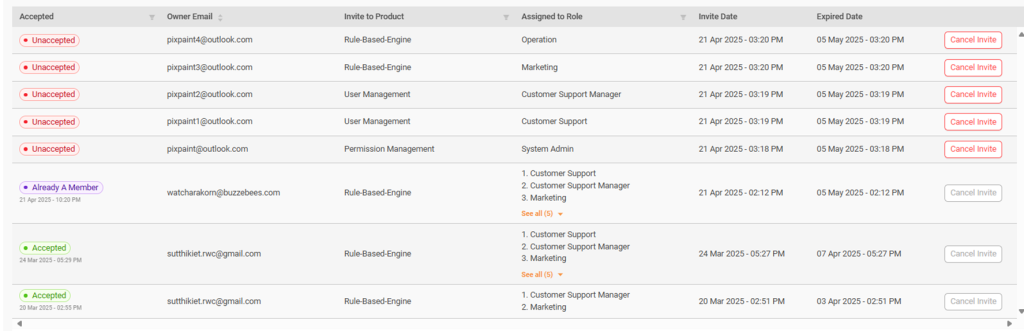
When inviting a member to the system, the invitation can have one of the following statuses:
• Accepted
The member has accepted the invitation and can now access the system according to the assigned role.
• Already A Member
The member is already part of the system.
In this case, you can still invite the member again to assign additional roles.
The member does not need to accept the invitation via email.
They will receive an email notification indicating that new permissions or roles have been granted, and can start using the system immediately based on the new permissions.
• Unaccepted
The member has not yet accepted the invitation.
- The inviter can manually cancel the invitation at any time.
- If the invitation is not accepted within 2 weeks, the system will automatically cancel it.
1.2 After Accepting the Invitation
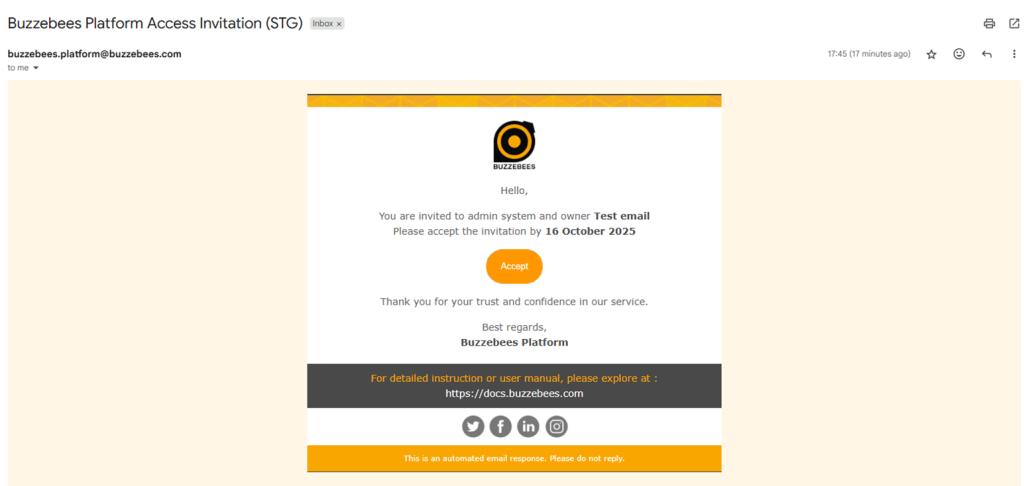
Once the member accepts the invitation via email, they will be able to access various features of the system automatically, based on the permissions assigned to them.
Access rights will vary depending on the role configured by the system admin. For example, members may be granted access to campaign menus, user management, or various reports.
This role-based access helps ensure that members can perform their tasks efficiently and in an organized manner, according to their responsibilities.
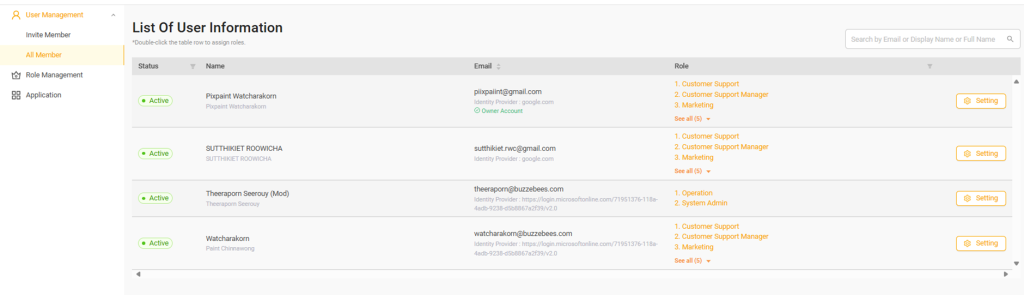
1.3 List of User Information
STEP: User Management > All Member
This page displays a list of all members and their assigned roles under the current account.
Note: If you need to change the Owner Account, please contact Buzzebees for assistance.
2. Role Management and Role Creation
Role Management is a system used to manage user access permissions based on their assigned roles.
There are 5 default roles available in the system as follows:
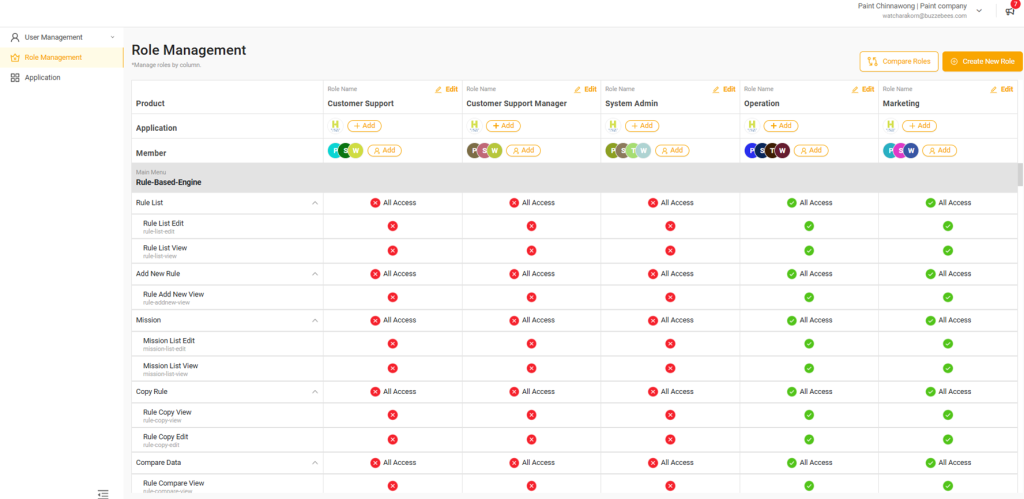
1.Customer Support
• Access to the Help Center to submit tickets to Buzzebees
• Access to customer information in the User Management system
2.Customer Support Manager
• Access to the Help Center to submit tickets to Buzzebees
• Access to customer information in the User Management system
• Ability to adjust points
3.System Admin
• Cannot access other features
• Can assign roles and permissions to users within the client company
4.Operation
• Configure Campaigns
• Set up Rule-Based logic
• View user information
5.Marketing
• Access the Dashboard
• View user information
• Configure Rule-Based logic
• Access MKT Engine (if included in the client's package)
2.1 Role Creation
STEP: Role Management > Create New Role
There are two methods to create a new role in the system:
- Create New
Create a brand-new role from scratch. The user must specify the role name and provide a clear description to ensure proper understanding and usage.
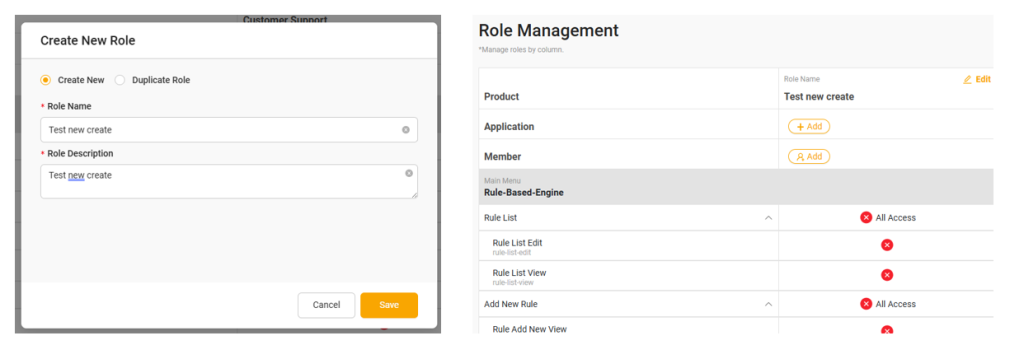
Create New Role
2.Duplicate Role
Create a copy of an existing role to save time when configuring permissions. This option is available
for all roles except the System Admin role, which cannot be duplicated.
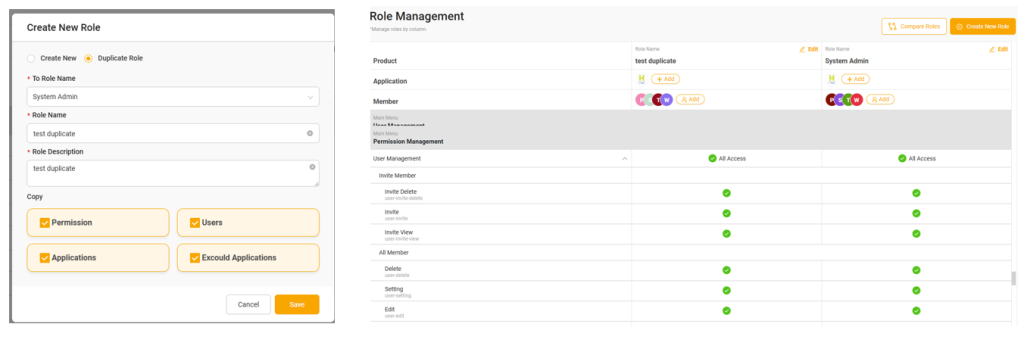
Duplicate Role
2.2 Edit

STEP: Role Management > Edit
When editing a role, users can access the following four functions:
- Edit Information
Used to modify the name and description of the role to suit specific requirements. - Set Access
Used to define feature access permissions related to the role within the system. - Assign Applications to Role
This feature is used when a new application has been added to the system.
It allows users assigned to this role to access the newly added application. - Reset Role
Used to cancel the current settings and reset the role back to its default state.
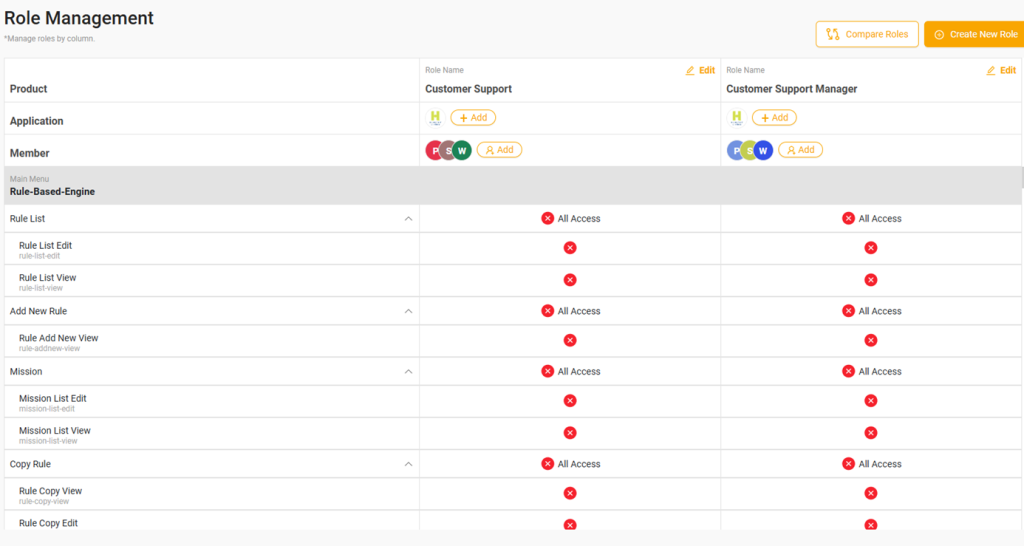
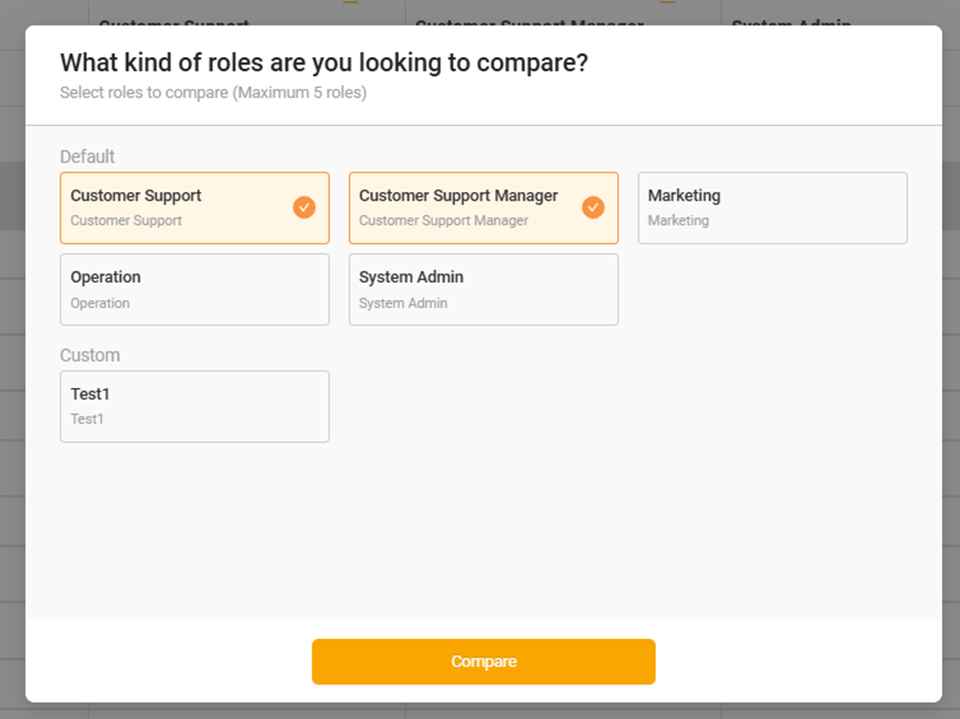
2.3 Compare Role
STEP: Role Management > Compare Role
You can use this function to compare the access permissions of different roles.
This helps ensure that the appropriate permissions are assigned to each role effectively and accurately.
3.Assigning Roles to Members
There are two methods for assigning roles to members:
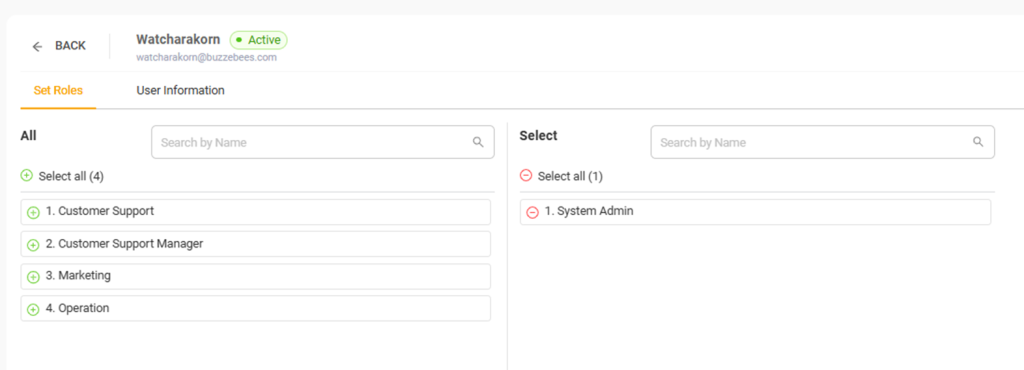
1.Assigning Multiple Roles to Individual Members
Assign roles individually to each member after they have joined the system.
STEP: User Management > All Member > Setting > Set Roles
Click the Setting button to open the Set Roles*page (default view).
Users can select available roles from the left-hand list.
To add a role, simply click on it — the selected role will move to the right-hand side
Once roles are selected, click Save to confirm the role assignment.
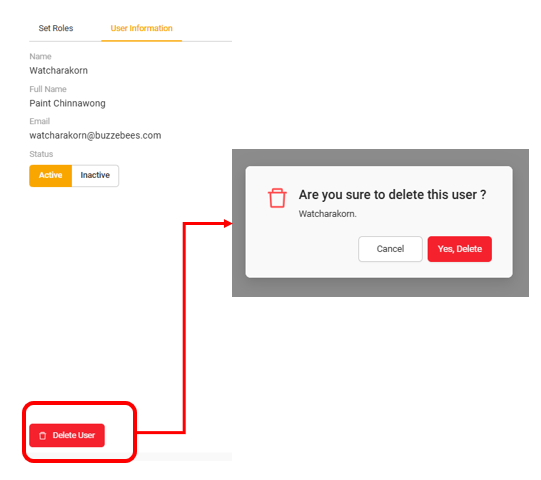
In addition, by clicking on User Information, you can manage the user’s status by selecting:
-Active (enabled)
-Inactive(disabled)
-Or choose to delete the user from the system entirely.
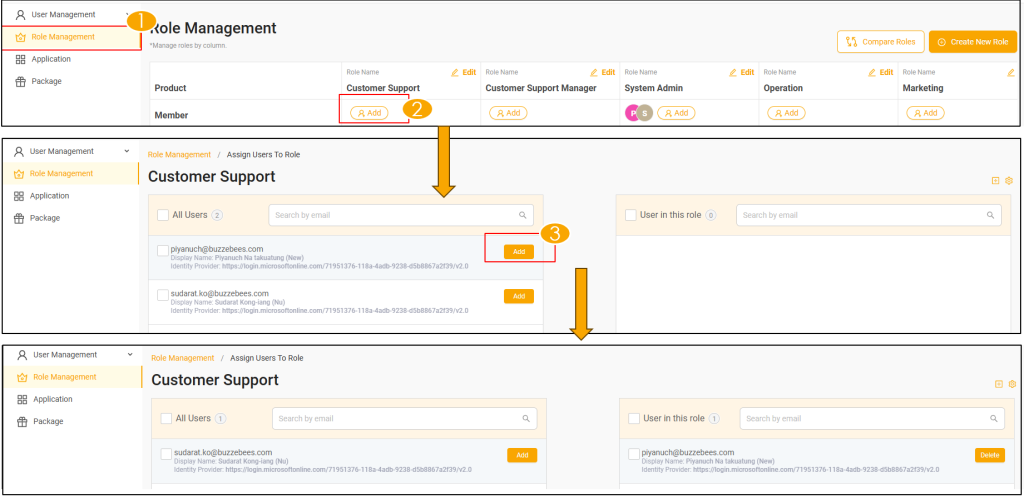
2.Assigning a Role to Multiple Members at Once
Select multiple members and assign the same role to all of them at the same time.
STEP: Role Management > Add (select the role to which you want to add members)
4. Access Management
The Access Management menu is used to control and define permissions for accessing the system and its various features.
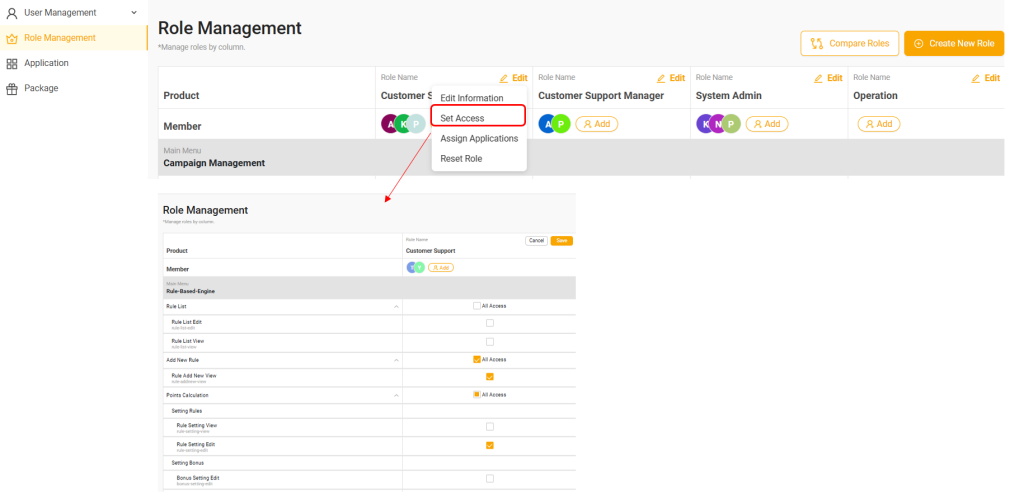
Steps:
Role Management > Edit (Select the role you want to manage access for) > Set Access
5.Add New Application under the Existing Account
This menu is used when adding a new application under an existing account.
The system allows administrators to link a new application to the existing account without the need to create a new one.
Using this menu helps manage applications more efficiently and systematically under a single account.
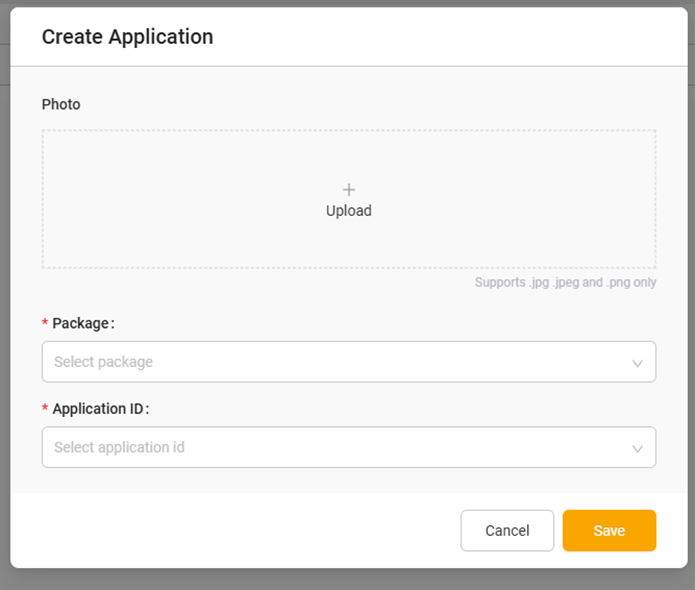
If the desired Package or Application ID is not found, please contact Buzzebees for further assistance